The history of Cron and the structural differences between Linux Cron and Quartz were covered in The Complete Guide to Cron Expressions: Everything a Developer Must Know About Scheduling. This post picks up from there. It focuses on the things that trip you up even after you know the syntax — how to combine special characters, which expressions suit which situations, and why the expression you wrote isn't behaving as intended. The goal is to learn Cron Expression practically through real-world examples across system operations, data pipelines, backend services, and CI/CD.
Special Character Combinations: Simpler Than They Look, But Full of Traps
The four basic special characters (*, ,, -, /) are familiar to everyone. The problem is combining them. There are expressions that look like they produce the same result but behave differently.
/ Step: The Starting Point Changes the Result
/ means "repeat every N intervals starting from the start value to the end of the field." */5 is the same as 0/5 — starting from 0 with an interval of 5, it fires at minutes 0, 5, 10, 15, ... But writing 3/5 gives 3, 8, 13, 18, ... — only the starting point differs; the end always fills up to the field's maximum value.
In practice, when you use */15, you usually want on-the-dot intervals (0, 15, 30, 45 minutes). If you want to avoid the top of the hour for load distribution, intentionally shift the start point like 7/15 (7, 22, 37, 52 minutes).
- and / Combined: Steps Within a Range
Using - and / together means "execute at intervals within a range."
One thing to note here: 9-17/2 starts at 9 with an interval of 2, giving 9, 11, 13, 15, 17. If you write 8-18/3 in the same hour field, you get 8, 11, 14, 17 — and 18 is not included (starting from 8 and adding 3 gives 8, 11, 14, 17; the next would be 20, which is outside the range). Whether your intended times are correctly included must be verified by listing them out or using a parser tool.
Mixing , and -: Non-Contiguous Ranges
The pattern of mixing ranges and lists like 8-10,14-16 is commonly used when scheduling for business hours. Group the morning block and afternoon block as separate ranges and connect them with ,.
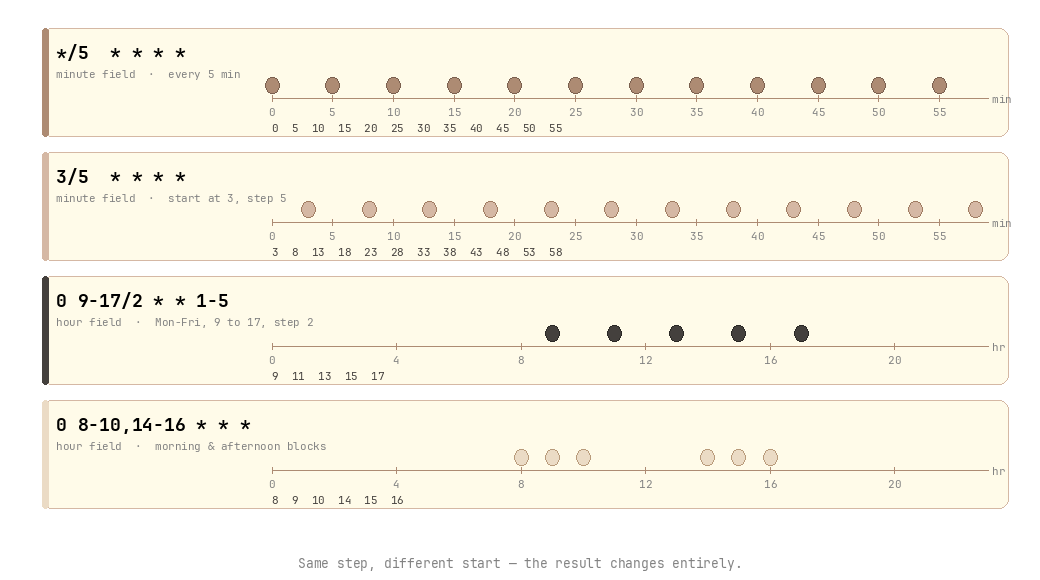
Execution times that vary by special character combination: even at the same interval, results differ based on start point and range
Quartz-Exclusive Special Characters: L, W,
Quartz supports additional special characters not found in Linux Cron. The Quartz official documentation has detailed specs, but here are the essentials:
L (Last) — Can be used in the day-of-month and day-of-week fields.
W (Weekday) — Valid only in day-of-month; means the nearest weekday to the specified date.
# (Nth weekday) — Valid only in day-of-week; specifies "the nth specific weekday of the month."
The # expression is easy to misuse for "biweekly execution" requirements, but it actually means "the nth occurrence of that weekday," not "the nth week." If the 5th Friday (6#5) doesn't exist in a given month, that execution will be skipped — be careful.
Patterns That Are Easy to Misread
There are expressions that are syntactically correct but behave differently from intuition. Here are the patterns where mistakes tend to repeat.
day-of-month + day-of-week Specified Together: Linux vs Quartz Difference
In Linux Cron, specifying both fields creates an OR condition.
This expression fires on the 1st even if it's not a Monday, and fires on Monday even if it's not the 1st. On months where Monday falls on the 1st, it could trigger twice on the same day (though some implementations deduplicate and run only once). To get "only when it's both the 1st AND a Monday" (AND), Linux Cron cannot express this — you'd need to check the date inside the script.
Quartz resolves this conflict with ?. Setting one of the two to ? makes only the other act as a condition.
Two Traps in "Every 30 Minutes"
30 * * * * is correct. But what's the difference between 0/30 * * * * and */30 * * * *? The result is the same — minutes 0 and 30. In most cron implementations the two are treated identically, but depending on the implementation (Quartz, some cloud schedulers, etc.), there can be subtle differences in how the start value is handled. Since 0/30 explicitly communicates the intent of "every 30 minutes starting at minute 0," it is recommended for readability and portability.
Weekday Numbers: Differ by Platform
| Day | Linux Cron | Quartz | AWS EventBridge |
|---|---|---|---|
| Sunday | 0 (or 7) | 1 (SUN) | 1 (SUN) |
| Monday | 1 | 2 (MON) | 2 (MON) |
| Saturday | 6 | 7 (SAT) | 7 (SAT) |
| Range notation | 0–6 (0=Sun) | 1–7 (1=Sun) or SUN–SAT | 1–7 (1=Sun) or SUN–SAT |
In Linux, 1-5 means Monday–Friday, but in Quartz, 1-5 means Sunday–Thursday. Copying a weekday expression as-is when switching platforms will silently run on the wrong days. Since Quartz and AWS EventBridge share the same numbering system, using name notation like MON-FRI instead of numbers is the most effective way to reduce mistakes.
The full Quartz weekday number mapping is as follows:
| Number | Abbreviation | Day |
|---|---|---|
| 1 | SUN | Sunday |
| 2 | MON | Monday |
| 3 | TUE | Tuesday |
| 4 | WED | Wednesday |
| 5 | THU | Thursday |
| 6 | FRI | Friday |
| 7 | SAT | Saturday |
Real-World Examples by Domain
1. System Operations & Infrastructure
2. Data Pipelines & ETL
3. Backend Services
4. CI/CD & DevOps
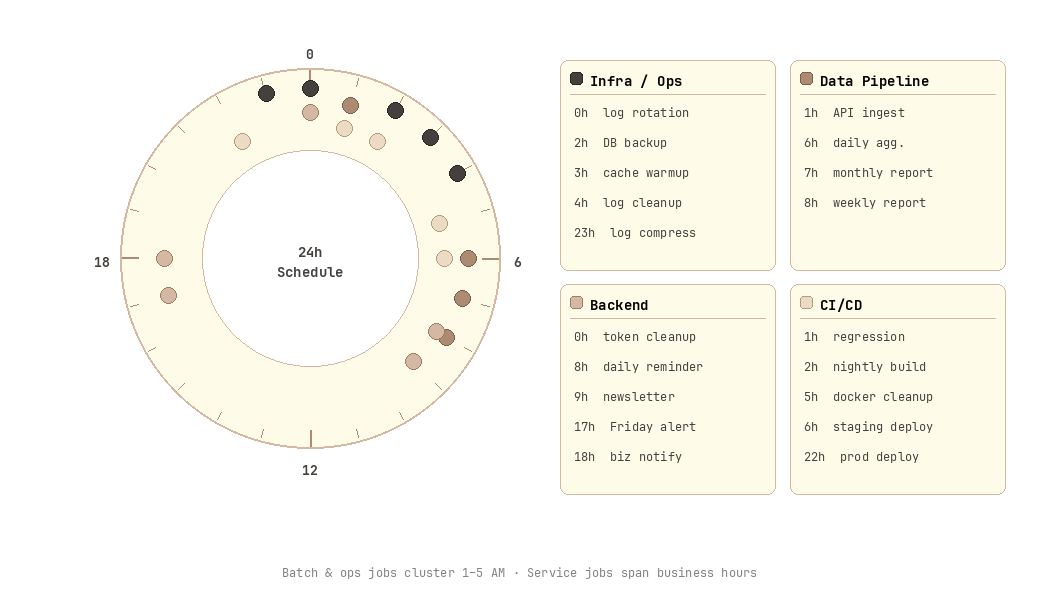
Domain-specific schedule distribution: batch and operations tasks are typically concentrated between 1–4 AM, while service tasks are spread throughout business hours
Quartz Real-World Examples: Spring @Scheduled
Here are the most commonly used patterns when using @Scheduled in Spring, paired with their Linux Cron equivalents. Remember that in Quartz, the seconds field comes first.
The zone attribute has been supported since Spring 4.0, and is very useful in practice as it allows you to define a schedule based on a specific timezone even when the server runs on UTC. See the Spring official scheduling documentation for more details.
Expression Validation: Pre-Deployment Checklist
Once you've written an expression, verify the following before deployment. The Cron Expression Parser can help you visually verify most of this checklist quickly.
Step 1 — Verify execution times with a parser: Enter the expression into a parser and visually confirm the next 10–20 execution times. It's more common than you'd think to get unexpected times.
Step 2 — Specify the timezone: Recheck execution times in the parser using the actual production timezone. This step is essential if your server runs on UTC but your intended times are in a local timezone.
Step 3 — Check boundary values: Verify how execution times change around month-end (28/29/30/31), and around DST transition dates (US: second Sunday in March, first Sunday in November).
Step 4 — Compare execution interval vs execution time: If there's a chance the job takes longer than its schedule interval, apply flock (Linux) or concurrencyPolicy: Forbid (Kubernetes).
Step 5 — Review load distribution: Check whether all cron jobs on your team are concentrated at a specific time (especially midnight or the top of the hour). Intentionally spreading them out can reduce infrastructure costs.
Cron Expression Cheat Sheet
Frequently used patterns in one place. Paste them into the Cron Expression Parser to instantly verify execution times.
| Description | Linux Cron | Quartz / Spring |
|---|---|---|
| Every minute | * * * * * | 0 * * * * ? |
| Every 5 minutes | */5 * * * * | 0 */5 * * * ? |
| Every 15 minutes | */15 * * * * | 0 */15 * * * ? |
| Every 30 minutes | 0/30 * * * * | 0 0/30 * * * ? |
| Every hour on the hour | 0 * * * * | 0 0 * * * ? |
| Every day at midnight | 0 0 * * * | 0 0 0 * * ? |
| Every day at 9:00 AM | 0 9 * * * | 0 0 9 * * ? |
| Weekdays at 9:00 AM | 0 9 * * 1-5 | 0 0 9 ? * MON-FRI |
| Every Sunday at midnight | 0 0 * * 0 | 0 0 0 ? * SUN |
| 1st of every month at midnight | 0 0 1 * * | 0 0 0 1 * ? |
| Last day of every month at midnight | Not possible with expression alone | 0 0 0 L * ? |
| Every year on January 1st at midnight | 0 0 1 1 * | 0 0 0 1 1 ? |
| Every hour during weekday business hours | 0 9-17 * * 1-5 | 0 0 9-17 ? * MON-FRI |
| First Monday of every month | Not possible with expression alone | 0 0 9 ? * MON#1 |
Things That Are Impossible with Linux Cron Expressions Alone
The following requirements cannot be implemented with Linux Cron expressions alone. You'll need script conditions or a different scheduler.
| Requirement | Linux Cron | Workaround |
|---|---|---|
| Last day of the month | ❌ | date -d tomorrow +%d = 01 script condition |
| nth specific weekday | ❌ | date +%W script condition, or Quartz # |
| Nearest weekday | ❌ | Use Quartz W character |
| Every 30 seconds | ❌ | Quartz seconds field, or systemd timer |
| One-time specific date | ❌ | at command, or a script that deletes itself |
| AND condition (date AND weekday) | ❌ | Conditional branching inside script |
If you frequently hit these limitations, it may be time to consider Quartz (Java/Spring environments) or systemd timer (Linux system services). The systemd timer's OnCalendar directive allows much richer expressions than Linux Cron, and it integrates dependency management and logging as well.
Closing Thoughts
Cron Expression may seem like a lot to memorize, but it ultimately comes down to repeating patterns. Once you properly understand a few special character combination rules, you can express most schedules — and knowing the workarounds for what you can't express is enough.
Make it a habit to always check execution times with the Cron Expression Parser whenever you write an expression. That moment when you think "it should be right" and move on is, more often than you'd think, where midnight incident alerts begin.
References
- Quartz Scheduler — CronTrigger Tutorial — Official specification for Quartz-exclusive special characters L, W, #
- Spring Framework — Task Execution and Scheduling — Official documentation for Spring @Scheduled and the zone attribute
- Vixie Cron crontab(5) man page — crontab(5) - Linux man page — Official rules for Linux Cron special characters and weekday numbers
- AWS — EventBridge Scheduler Cron expressions — AWS EventBridge Cron dialect reference
- Kubernetes — CronJob Documentation — Kubernetes CronJob concurrencyPolicy and timezone configuration documentation